Help Center
Everything you need to know about using RemoteShield.
Need help? Email us at support@remoteshield.com.au
We typically respond within 24 hours on business days.
How RemoteShield Works
RemoteShield runs silently in the background as a Windows service. It starts automatically when your computer turns on and watches for any remote access software trying to run.
The moment a blocked application starts — like AnyDesk, TeamViewer, or any of the 255+ tools in our database — RemoteShield terminates it immediately. No popup to click, no decision to make. The scammer never gets a connection.
The threat database updates automatically every 12 hours, so new threats are blocked without you having to do anything. You don't need to update the app manually.
What Happens When a Threat Is Blocked
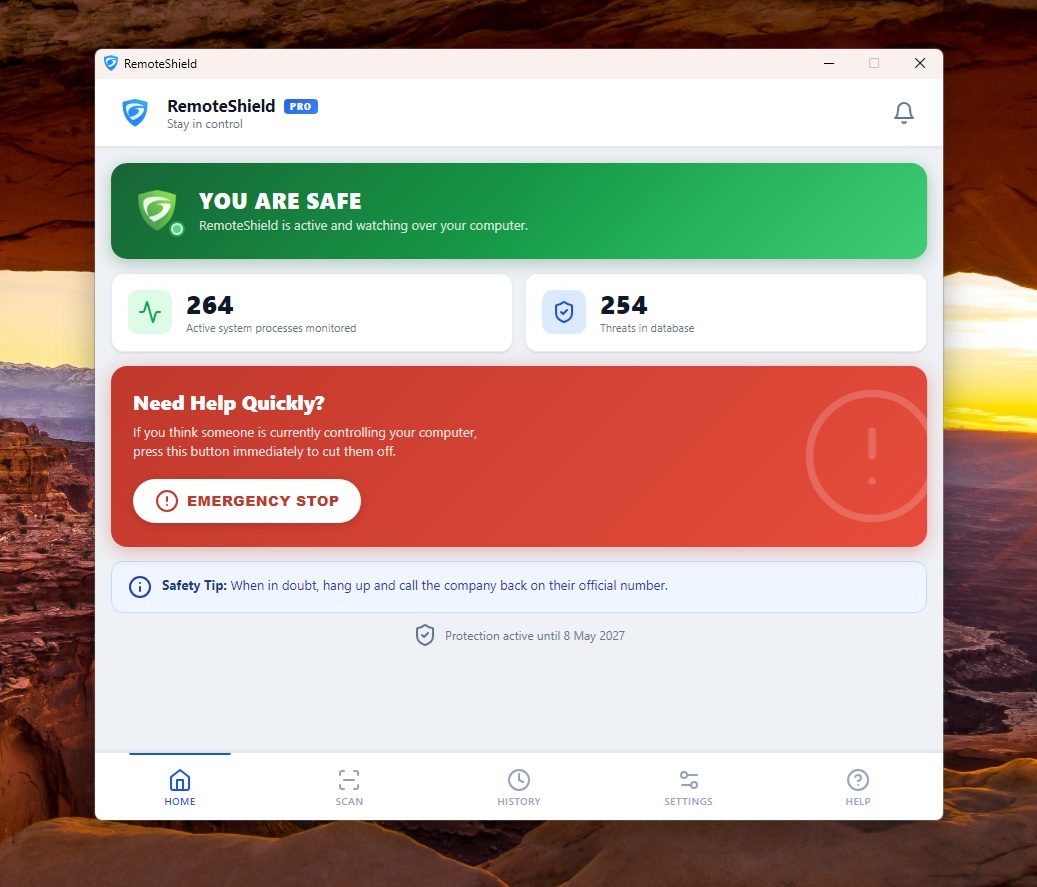
When RemoteShield blocks a remote access tool, you'll see a notification near the system tray (bottom-right of your screen). The notification tells you which program was blocked and when.
You can view your full blocking history in the app by clicking HISTORY in the bottom navigation bar. This shows every threat that was stopped, with the date, time, and program name.
If you didn't expect anything to be blocked, that's a good sign — it means RemoteShield caught something before it could cause harm. If a scammer was on the phone with you at the time, hang up immediately.
Emergency Stop
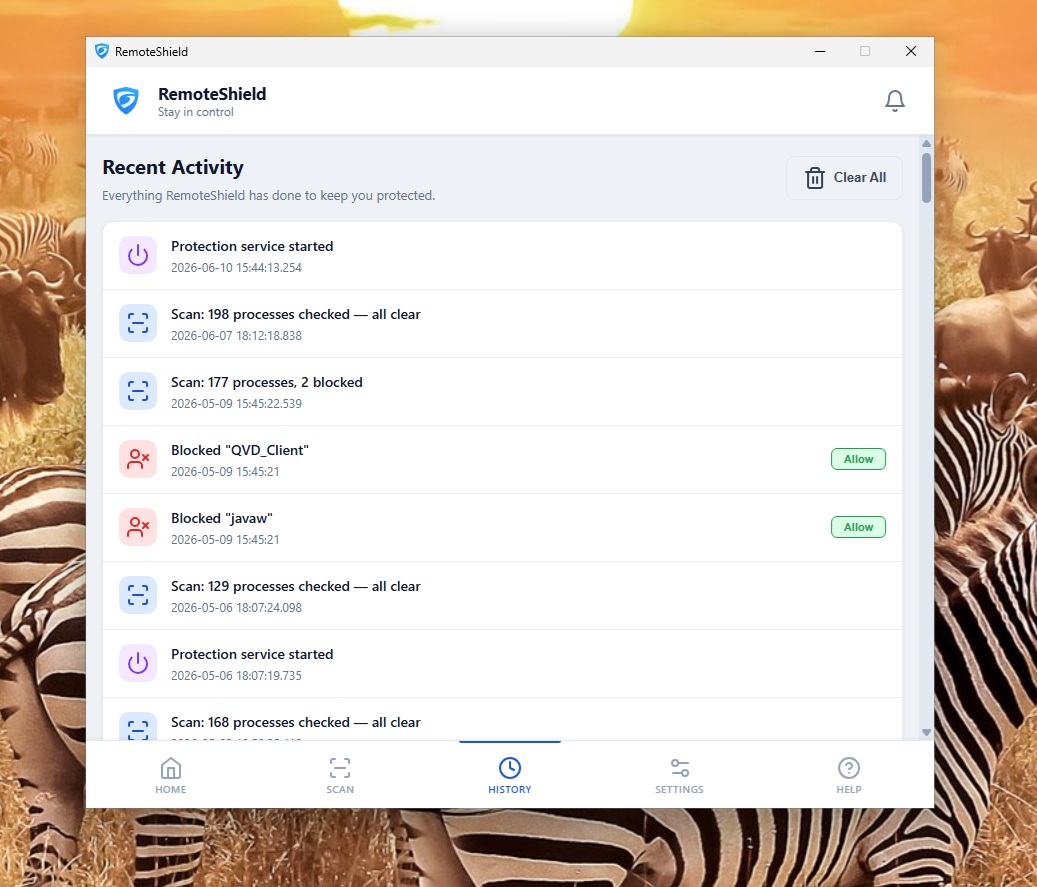
If you think someone is currently controlling your computer, press the EMERGENCY STOP button on the home screen. This immediately kills all running remote access tools and any suspicious network connections.
You can also press Ctrl + Alt + Shift + P at any time — even if RemoteShield isn't visible on screen. This keyboard shortcut triggers the same emergency stop.
After using Emergency Stop, hang up the phone immediately. Then call your bank to check for unauthorized transactions.
Allowing a Trusted Remote Tool (Whitelist)
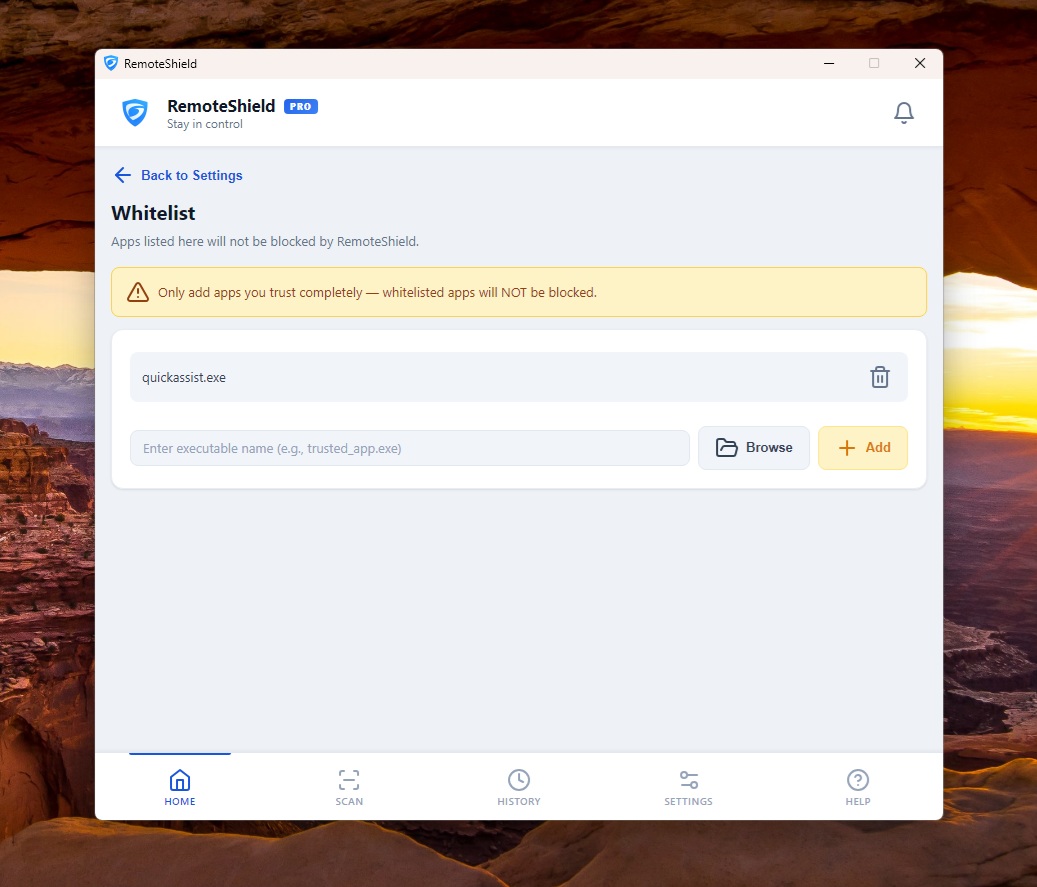
If your IT support person uses a remote access tool like Quick Assist or TeamViewer to help you, they may need to add it to RemoteShield's whitelist. This allows that specific tool to run while keeping everything else blocked.
Important: Only your IT support person should make this change — ideally in person or during a scheduled appointment you initiated. Never whitelist a program because someone on the phone asks you to. That's exactly what scammers do.
To add a program to the whitelist:
- Open RemoteShield
- Click SETTINGS in the bottom navigation
- Click Whitelist
- Click Add application and type the program name (e.g.
QuickAssist.exe) - Click Save
Running a Scan
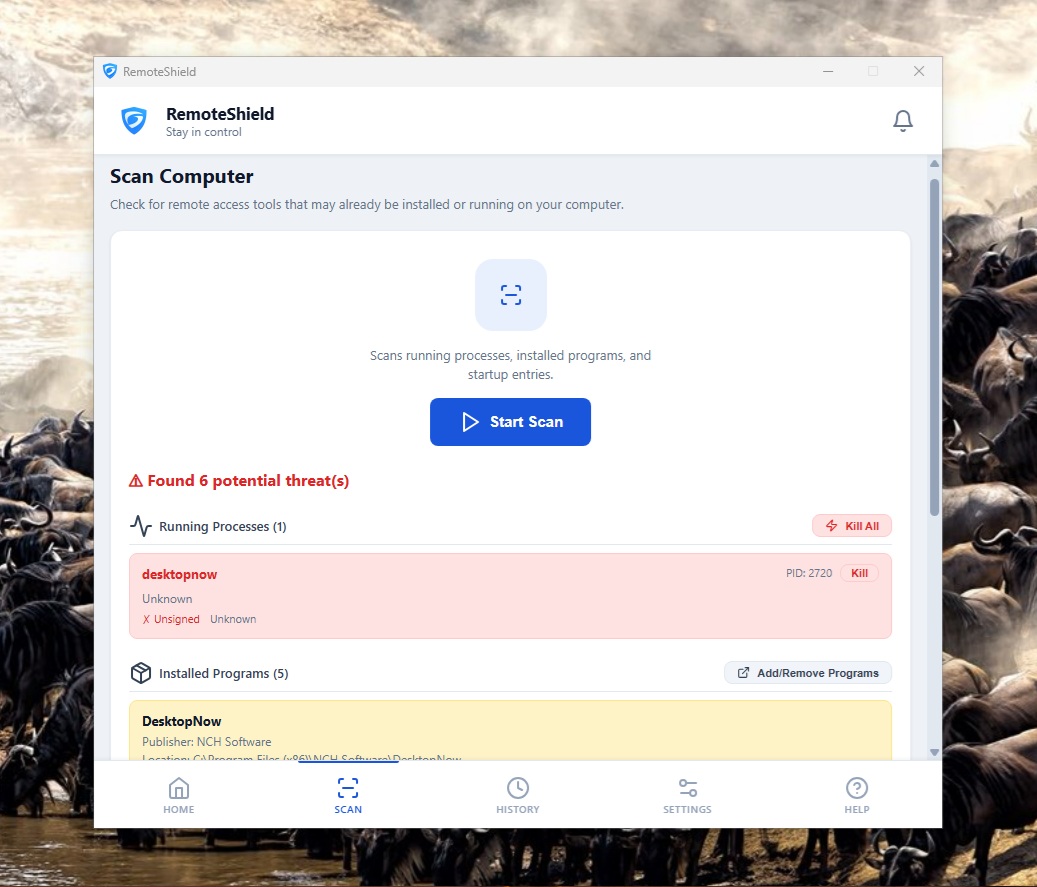
RemoteShield monitors your computer continuously, but you can also run a manual scan at any time. Click SCAN in the bottom navigation to check all running programs against the threat database.
If the scan finds any remote access tools running, it will list them and give you the option to terminate them immediately.
Trial Period and Activation
RemoteShield comes with a 30-day free trial. Full protection is active during the trial — nothing is limited or restricted.
When the trial ends, you'll see an activation screen with a button to subscribe for $68 per year. Payment is handled securely through Stripe. Once activated, your protection continues uninterrupted.
If you reinstall RemoteShield on the same computer, your existing license is automatically recovered within 30 seconds — no need to pay again.
I Think I've Been Scammed
If you think someone has accessed your computer without your permission, take these steps immediately:
- Hang up the phone. Don't let the caller talk you out of it.
- Disconnect from the internet. Unplug your ethernet cable or turn off Wi-Fi. This cuts the scammer's connection.
- Call your bank. Tell them you may have been the victim of a remote access scam. They can freeze your accounts and check for unauthorized transactions.
- Change your passwords. Start with your email and banking passwords, from a different device (phone or another computer) if possible.
- Report it. Contact Scamwatch at scamwatch.gov.au or call 1300 795 995.
Remember: Being scammed is not your fault. These criminals are professionals who manipulate thousands of people. Reporting helps protect others.
Frequently Asked Questions
Does RemoteShield replace my antivirus?
No. RemoteShield works alongside your existing antivirus (Norton, McAfee, Windows Defender, etc.). It focuses specifically on blocking remote access tools — something traditional antivirus doesn't do because these tools are technically legitimate software.
Will RemoteShield slow down my computer?
No. RemoteShield uses very little memory and CPU. It runs quietly in the background and you won't notice any performance difference.
What if my IT support person can't connect remotely?
RemoteShield is doing its job. Your IT support person needs to add their remote tool to the whitelist. They should do this in person or during a scheduled session — see the Whitelist section above.
Can I turn off RemoteShield temporarily?
You can pause protection for 15 minutes via Settings. Protection resumes automatically after the pause period. We recommend only pausing when your trusted IT support person asks you to, and only if they've already whitelisted their tool.
I got a refund. What happens now?
After a refund, your license will be deactivated. RemoteShield will continue working in trial mode if you have trial days remaining. You can uninstall it at any time. See our Refund Policy for details.
How do I uninstall RemoteShield?
Go to Windows Settings → Apps → find RemoteShield → Uninstall. Or, if the activation screen is showing, click "Uninstall RemoteShield" in the footer. The uninstaller will ask if you want to keep or delete your settings.